A few days ago, I was checking my phone settings randomly and noticed something interesting. Some apps that I rarely opened were still showing internet usage in my data report.
Most of us usually know when we spend time watching videos, browsing websites, or downloading something. But sometimes the confusing part is finding out what happens behind the scenes.
Your Android phone keeps a record of how much internet every app uses. You just need to know where to look.
If you want to find which app is using your mobile data or WiFi, here are some simple ways to check it.
Start From Your Phone Data Usage Report
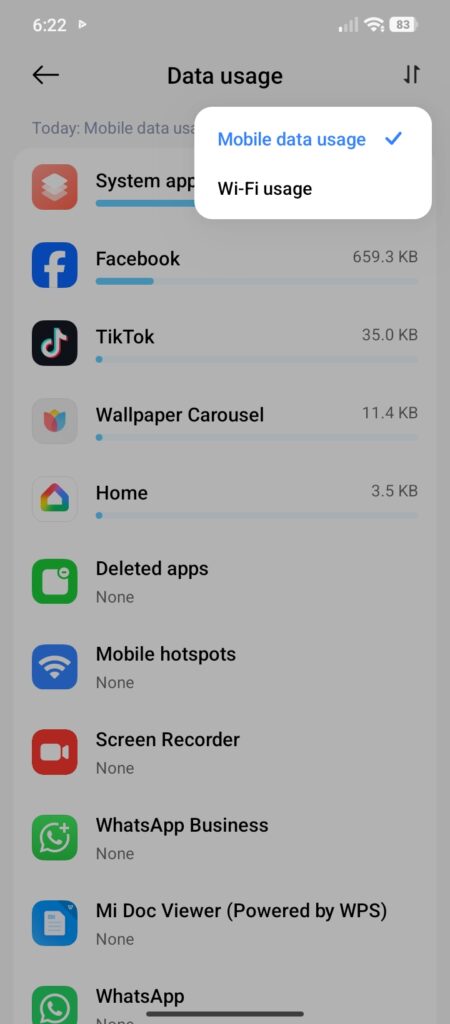
The first place I always recommend checking is your phone’s own settings. You do not need to install another app immediately because Android already tracks internet usage.
Open your phone settings and look for:
Settings → Network & Internet → Data Usage
Depending on your device, the option may have a slightly different name. For example, on some Samsung phones, it is usually available under:
Settings → Connections → Data Usage
Other Android brands like Xiaomi, Oppo, or Vivo also have similar options. After opening this section, you should see apps listed with the amount of data they have used. This gives you a clear idea about your internet activity.
Check App Usage For The Correct Time Period
One mistake many people make is checking data usage without looking at the selected dates. Your phone normally shows usage according to a specific cycle.
For example:
Last 7 days
Current month
Previous month
Before deciding that an app is using too much internet, make sure you are checking the correct time range. An app may look like it consumed a lot of data because the report is showing an entire month. Changing the date range gives you a better picture.
Understand Foreground And Background Data
When you open detailed app usage, you may see two different types of data. Foreground data and background data. Foreground usage is simple. It means the internet used while you were actively using the app. Background data is different. It means the app connected to the internet while you were doing something else. This does not always mean something is wrong. For example, a messaging app checking for new messages is normal.
But if a random app that you barely use has high background usage, it is worth checking. That is usually where the data usage report becomes helpful.
Check Individual App Internet Usage
If you want more details, check apps one by one.
Open:
Settings → Apps
Select any app and open its data usage information. Here you can see how that specific app behaves. This is useful when you already suspect an app. For example, if you installed a new app recently and your internet usage changed, check that app first. Sometimes a newly installed app can be responsible.
Restrict Background Internet For Selected Apps
After finding an app that is using unnecessary internet, you do not always have to delete it. Android gives you control over background activity. You can restrict background data for specific apps. The app will still work when you open it, but it will have fewer background connections. I prefer doing this only for apps that are not important. For apps like messaging or email, restricting too much can delay notifications.
Check WiFi Data Usage Separately
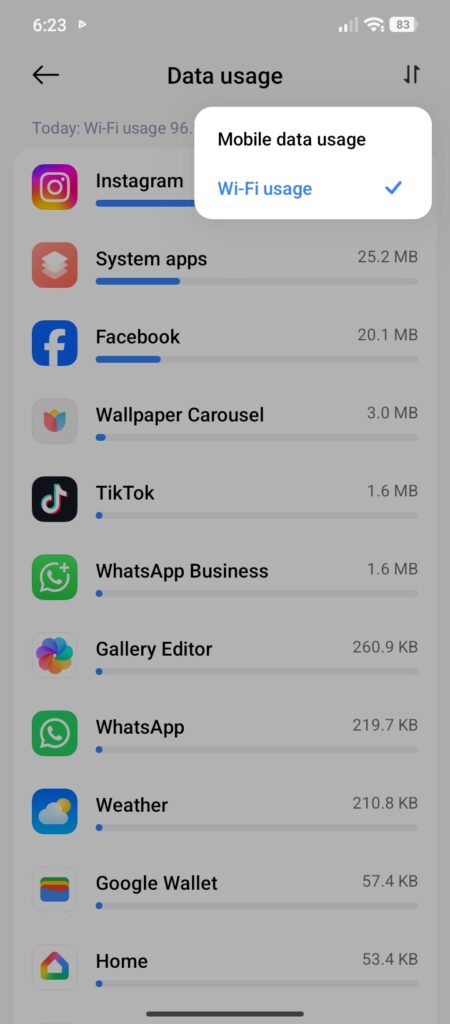
Many people only check mobile data usage, but WiFi usage can also tell you useful information. Some Android phones allow you to view WiFi data usage separately. This helps you understand your overall app behavior. Maybe an app does not use much mobile data because it waits for WiFi before downloading larger files. Checking both reports gives a more complete view.
Look At Recently Installed Apps
Whenever something changes suddenly on your phone, think about recent changes.
Ask yourself:
- Did I install a new app?
- Did I change any settings?
- Did an app receive a major update?
Sometimes the answer is there. Checking recently installed apps can save a lot of time instead of changing random settings.
Do Internet Monitoring Apps Help?
There are third-party apps that provide detailed internet reports. Some users like them because they show extra statistics. However, for normal users, Android’s built-in data usage tool is usually enough. If you install any monitoring app, choose a trusted one and check what permissions it requires. Installing unnecessary apps just to monitor other apps is not always the best idea.
Make Checking Data Usage A Habit
You do not need to check these settings every day. But checking once in a while helps you understand your phone better. I usually check data usage whenever I feel something unusual, like faster internet usage or unexpected activity. It only takes a minute and gives a clear picture of what is happening.
Final Thoughts
Finding which app is using your internet data is much easier than most people think. Your Android phone already collects this information and shows it inside settings. Instead of guessing, open your data usage report, check individual apps, compare foreground and background activity, and control apps according to your needs. Once you understand which apps are using your internet, managing your phone becomes much easier.